
Restaurant Inventory Management Excel Template
TL;DR
Download a free restaurant inventory Excel template with built-in COGS formulas, 7 ingredient categories, and a live Dashboard tab. Learn what belongs in a proper inventory sheet, how to calculate food cost %, and when to upgrade to software.
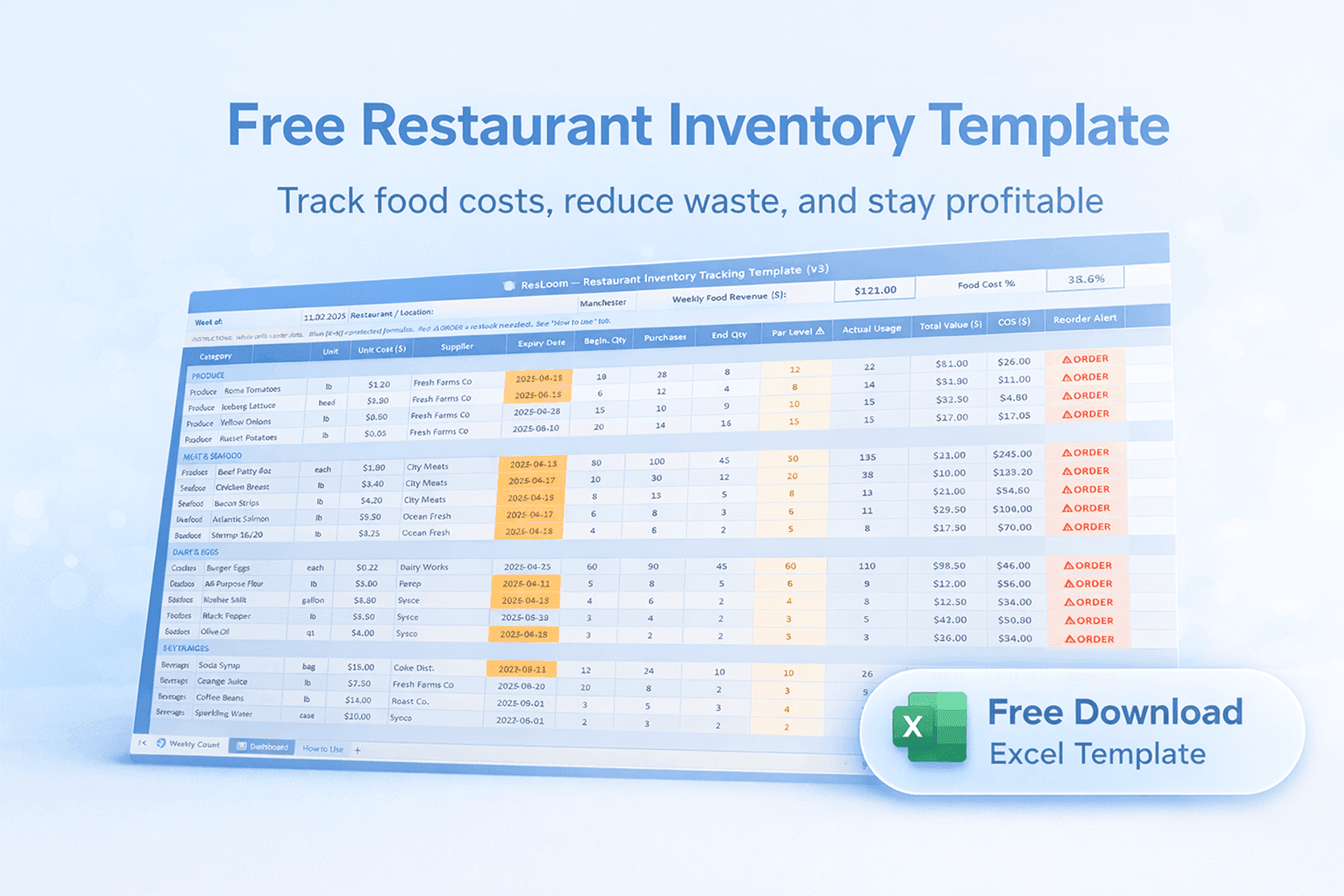
Restaurants lose an average of 20% of their profits to shrinkage and waste. Food waste alone costs the foodservice industry over $160 billion a year. Manual tracking misses items. Blind purchasing decisions drain margins. By the time someone notices a problem, the damage has already compounded across weeks of service.
You need a system to track what comes in and what goes out. A restaurant inventory management Excel template gives you a baseline for control. Stop guessing what sits on your shelves. Start tracking.
Free Restaurant Inventory Template
Microsoft Excel & Google Sheets compatible · COGS formulas included · Sample data pre-filled · How to Use sheet included
No email required. Direct .xlsx download.
What Is a Restaurant Inventory Excel Template?
A restaurant inventory template is a standardized worksheet used to record and monitor food, beverages, and supplies. It replaces memory and paper notes with a rigid structure. Count the stock. Enter the numbers. The spreadsheet calculates the value of goods on hand and shows exactly where your cash is tied up.
The template on this page is pre-built around the physical flow of a restaurant kitchen — from delivery dock to prep line to plate. Download it, replace the sample rows with your actual ingredients, and start tracking this week.
What Should a Good Template Include?
Generic spreadsheets fail. A proper food inventory sheet requires specific fields to calculate usage and costs accurately. Build your sheet with these non-negotiable data points.
- →Item name: The exact ingredient or product on your shelf.
- →Quantity: A beginning count, a purchases column, and an ending count — not a single mutable number.
- →Unit cost: The exact price per unit from your latest invoice. One wrong number corrupts every COGS figure.
- →Supplier: The vendor who delivers the product. Critical for placing reorders quickly.
- →Expiry date: The date the product spoils. Catch waste before it compounds.
- →Total value: Quantity × unit cost. The actual cash sitting in your walk-in right now.
- →COGS formula: Beginning + Purchases − Ending × unit cost. Should be automatic — not calculated by hand.
- →Par level: The minimum quantity you need to run a normal week. Below par = place an order.
Example Restaurant Inventory Layout
Structure your sheet for speed and accuracy. Place a bold category header at the top of each section. Dedicate one row per ingredient. Walk the kitchen in the same order as your spreadsheet every time — walk-in first, dry store second, bar last. A count that takes 90 minutes on week one drops to 30 minutes once it is muscle memory.
Below is a sample of the template populated with real numbers. The COGS column is the only figure that matters for margin control — it tells you exactly what each ingredient cost you this week.
| Item | Category | Unit | Unit Cost | Begin Qty | Purchases | End Qty | Usage | COGS ($) |
|---|---|---|---|---|---|---|---|---|
| Roma Tomatoes | Produce | lb | $1.20 | 10 | 20 | 8 | 22 | $26.40 |
| Beef Patty 4oz | Meat & Seafood | each | $1.80 | 80 | 100 | 45 | 135 | $243.00 |
| Cheddar Slices | Dairy & Eggs | lb | $5.50 | 5 | 8 | 3 | 10 | $55.00 |
| Burger Buns | Dry Goods | each | $0.35 | 100 | 150 | 60 | 190 | $66.50 |
| House Red Wine | Alcohol | bottle | $8.50 | 12 | 24 | 10 | 26 | $221.00 |
| Dish Soap | Cleaning | gallon | $9.50 | 2 | 2 | 1 | 3 | $28.50 |
This Template at a Glance
Every column in the Weekly Count tab has a specific role. Columns A–J are yours to fill in. Columns K–N are locked formulas — the sheet calculates actual usage, total value, COGS, and reorder status automatically.
| Col | Field | Purpose | Type |
|---|---|---|---|
| A | Category | Group ingredients by storage area — dropdown validated | dropdown |
| B | Item Name | Exact ingredient or product name | input |
| C | Unit | The unit you order and count in (lb, each, gallon) — dropdown | dropdown |
| D | Unit Cost ($) | Price per unit — pull from your latest invoice | input |
| E | Supplier | Who delivers this item | input |
| F | Expiry Date | Auto-highlights orange (≤7 days) and red (expired) | input + CF |
| G | Beginning Qty | Physical count at the start of the period | input |
| H | Purchases | Total received via delivery during the period | input |
| I | Ending Qty | Physical count at the end of the period | input |
| J | Par Level | Minimum safe stock — enter your reorder threshold here | input |
| K | Actual Usage | = G + H − I (locked formula) | formula |
| L | Total Value ($) | = I × D — cash value of remaining stock (locked) | formula |
| M | COGS ($) | = K × D — cost of what was consumed (locked) | formula |
| N | Reorder Alert | ⚠ ORDER (red) when End Qty < Par Level, else ✓ OK (locked) | formula |
| O | Notes | Spoilage reason, variance flag, follow-up action | input |
formula columns are locked — you cannot accidentally delete them. dropdown columns validate your input to prevent typos breaking formulas. input + CF means the cell has conditional formatting built in.
How to Use the Template
The template is pre-loaded with sample data across seven categories (Produce, Meat & Seafood, Dairy & Eggs, Dry Goods & Spices, Beverages, Alcohol, Cleaning & Supplies). Replace the sample rows with your actual ingredients and follow this process every week.
1Replace the sample rows with your ingredients
Go to the "Weekly Count" tab. Delete the sample rows and enter your actual ingredients. Keep the category structure — it mirrors the physical order of your walk-in, which makes counting faster.
2Set par levels for every ingredient
Par level = the minimum quantity you need to run a normal week. Enter it in column J for every ingredient. The Reorder Alert column (N) will automatically flag ⚠ ORDER in red whenever Ending Qty drops below that threshold. Start with 1.5× your average weekly usage.
3Enter your unit costs from the latest invoices
Fill in column D (Unit Cost) from your most recent supplier invoices. Update it every time a price changes. This is the most critical number — a wrong cost makes every COGS figure wrong.
4Count beginning inventory before deliveries arrive
Before your Monday delivery, count every item physically on the shelf. Enter the quantity in column G. This is your opening stock for the week.
5Log every delivery the same day it arrives
Each time stock comes in, add the received quantity to column H. Do this immediately — not from memory the next day.
6Count ending inventory after Sunday close
After your last service of the week, count everything again. Enter in column I. The COGS, Actual Usage, and Reorder Alert columns calculate automatically.
7Enter your weekly food revenue
Type your total food revenue for the week. The sheet calculates your Food Cost % automatically in the summary banner. Target 28–35% for full-service, 25–30% for QSR.
8Open the Dashboard tab to review your results
The Dashboard tab pulls everything from Weekly Count automatically. You will see 6 KPIs (Total COGS, Inventory Value, Food Cost %, Weekly Revenue, Items Needing Reorder, Expiring This Week), a COGS breakdown by category with in-cell bars, and a live reorder list showing every item below par — ready to hand to your supplier.
The COGS Formula
Every formula in the template is derived from this core equation. Understanding it helps you interpret the numbers correctly.
COGS = (Beginning Inventory + Purchases − Ending Inventory) × Unit Cost
- Beginning InventoryPhysical count on hand at the start of the period
- PurchasesAll deliveries received during the period
- Ending InventoryPhysical count on hand at the end of the period
- Unit CostPrice per unit from your latest supplier invoice
Example: 80 begin + 100 received − 45 end = 135 beef patties used. At $1.80/patty → COGS = $243 for the week.
Industry Benchmarks
Use these figures to benchmark your own waste percentage and food cost against the industry. If your numbers are worse than these, the template will help you find out why.
Restaurant Food Waste & Inventory — Key Stats
Sourced from ReFED, USDA, and the National Restaurant Association.
Benefits of Using Excel for Inventory
Spreadsheets offer real advantages for operators who are just getting started or who run a lean, single-location kitchen.
Low cost
Excel and Google Sheets are essentially free. No subscriptions, no login — the template costs nothing.
Full customization
You control every row and column. Add categories that match your menu and remove fields that do not apply.
Works anywhere
Lives on your local machine or a shared cloud drive. Print it, take it into the walk-in. No internet needed.
When Excel Breaks Down
The template works well as a starting point. It will show you the discipline of tracking. But spreadsheets have a ceiling.
Manual entry, manual errors
One wrong digit corrupts your entire COGS figure. You will spend more time checking the math than running the kitchen.
No POS connection
The sheet cannot see what was sold. Variance analysis becomes a two-hour exercise instead of a one-click report.
Goes stale instantly
Stock changes by the hour. The spreadsheet is a snapshot — you are always operating on data that is already old.
Does not scale
Two locations with 120 ingredients each is a full-time job. The sheet forces you to choose between accuracy and sanity.
Get new guides in your inbox
Practical tips on inventory, food costs, and restaurant operations — no spam.
Download the Template and Start Tracking This Week
Control your stock. Protect your margins. Stop losing money to problems you cannot see. Download the free template above and establish a baseline for your business this week. When counting takes more than two hours or variance becomes impossible to trace, ResLoom IMS picks up exactly where the spreadsheet leaves off.
ResLoom IMS — everything in the template, done automatically
- Connects directly to your POS — theoretical stock updates on every sale
- Flags negative variance the moment a shift ends
- Generates purchase orders based on live par levels
- Works across multiple locations from a single dashboard
Frequently Asked Questions
- What is a restaurant inventory Excel template?
- A restaurant inventory Excel template is a pre-built spreadsheet with columns for ingredient name, unit, unit cost, beginning inventory, purchases, ending inventory, and COGS formulas. It gives operators a structured system to count stock and calculate food cost without building formulas from scratch.
- How do I calculate COGS in a restaurant spreadsheet?
- COGS = Beginning Inventory + Purchases − Ending Inventory. In the template, this formula is pre-built in the COGS column. Just enter your beginning stock, log your deliveries, count your ending stock, and the sheet calculates the rest automatically.
- How often should I update the inventory template?
- At minimum, weekly — with a full physical count at the start and end of each week. High-value items like proteins and alcohol should be counted daily. The template has a "Week of" field so you can save a new copy for each period.
- What are the limitations of using Excel for restaurant inventory?
- Excel requires 100% manual data entry, it does not connect to your POS, and it goes stale the moment you save it. One wrong keystroke corrupts a formula. As your menu grows, the sheet becomes unmanageable. It is a good starting point, but high-volume operations need dedicated software.
- Can I use this template in Google Sheets?
- Yes. Download the .xlsx file, then open Google Sheets and use File → Import to upload it. The COGS and Total Value formulas are fully compatible with Google Sheets.
- When should I switch from Excel to inventory management software?
- When counting takes more than two hours per week, when you cannot identify the root cause of your variance, or when you are managing more than one location. Software connects to your POS, updates theoretical stock in real time, and flags negative variance automatically.
Was this article helpful?
Sources & References
- USDA Economic Research Service. Food Waste FAQs. Food loss and waste at retail and consumer levels equates to approximately $162 billion annually — the basis for the "over $160 billion" figure cited in the introduction.